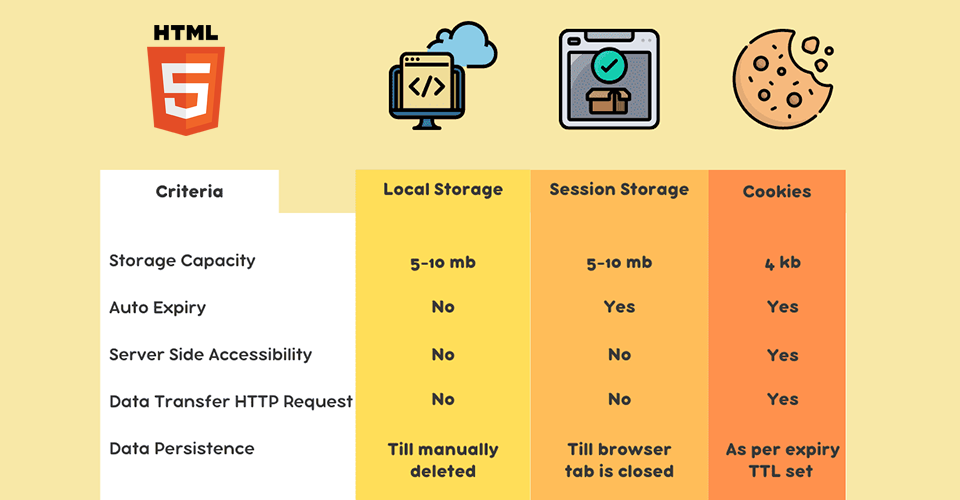
How to save game options with html5 new features
soon…
How to save game options with html5 new features Read Post »

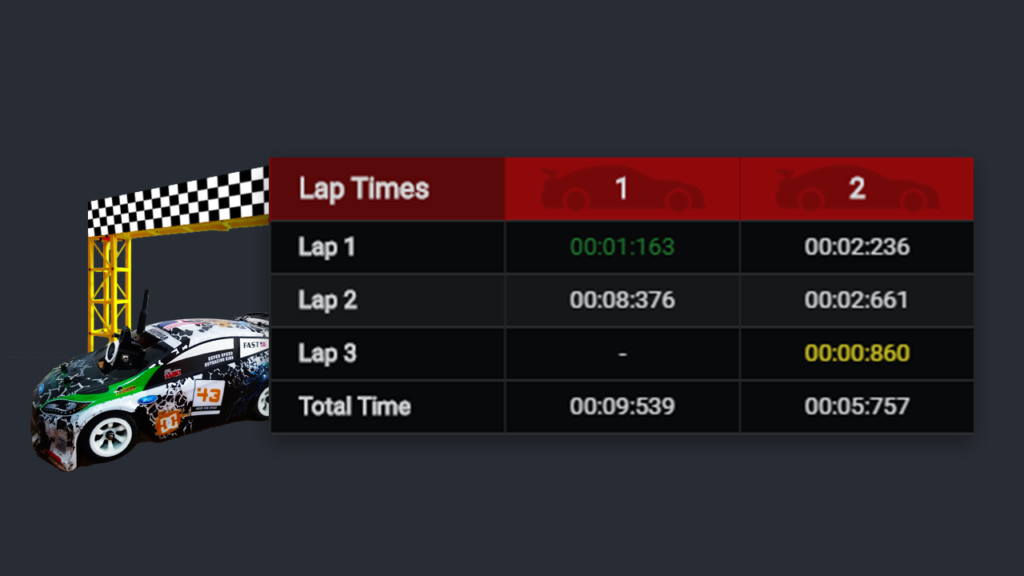
In this tutorial you’ll learn how to make a custom Lap Counter for RC Cars using Wemos D1 Mini and infrared receivers with a free 3D printable Gate.
Build the lap counter gate Read Post »

Under Construction This stuff below is still incomplete.. please return soon. × Dismiss this alert. Buy the parts needed: Raspberry Pi Kit ……………..………………….… Amazon / Banggood Disclosure: These are affiliate links. I earn a little comission if you use my links to buy the parts.Please use them to help me continue building cool projects. Step1: Download and install the necessary software We’ll start on a fresh Raspberry pi image and install Samba, Nginx, PHP+SSL and Mosquitto Raspberry Pi ImagerKitty SSH Step2: Install Raspberry Pi to your SD Card It’s dumb to re-do work so: See how to do that on this very detailed guide. Make sure to: Select your board (I used Raspberry Pi 3B+) Select the latest Raspberry Pi OS. (I used 64 bit Bookworm) Set hostname to “raceserver” Set username to “pi” and your password Add your Wi-Fi and locale information Enable SSH on the Services Tab https://youtu.be/VWoumQGgcBo Step3: Connect via SSH https://youtu.be/h1uF7gnUo2I On the kitty SSH window use right-click to paste the commands. raceserver.local Step4: Install Samba Samba is used only to easily transfer files over the network. We can disable or uninstall it after all is done. https://youtu.be/LLl4RVoteGw $ sudo apt-get install -y samba winbind Edit the samba configuration file $ sudo nano /etc/samba/smb.conf Add the line below after the “workgroup = WORKGROUP” line. If your workgroup is different change it too. This adds support for windows networks.Paste to kitty SSH window with [Right Click]. wins support = yes Add this to the end of the configuration file to:Share your “home/pi” folder and create a shared folder named [pi] on your network. [pi] comment=Home path=/home/pi browseable=Yes writeable=Yes only guest=no create mask=0777 directory mask=0777 public=no Set a password to login over the network. It will be required on your first access so remember it. $ sudo smbpasswd -a pi Restart the samba daemon $ sudo /etc/init.d/smbd restart Now open Windows Explorer and type \[HOSTNAME].local on the address bar to access your Pi: \raceserver.local Enter the pi folder and now you can delete all folders inside your home folder. We’ll not need them. Create a folder to store the racegame local website files. Extract the RaceGame files you downloaded on this folder $ mkdir ~/www Step5: Install Nginx + PHP + SSL Nginx is the webserver used to display the pages. We’ll need to install an SSL certificate because in order to use Websockets and WebRTC, a secure connection to the browser is necessary. The the certificate isn’t fully valid on localhost, but it won’t matter for our purposes. $ sudo apt-get install -y nginx php-fpm libnss3-tools openssl Generate a SSL certificate for Nginx $ sudo openssl req -x509 -nodes -days 365 -newkey rsa:2048 -keyout /etc/ssl/private/nginx-selfsigned.key -out /etc/ssl/certs/nginx-selfsigned.crt When it’s done, you’ll be asked a to fill a few fields.The really important one is the IP address 127.0.0.1 on line 6. The others can be anything. Country Name (2 letter code) [AU]: US State or Province Name (full name) [Some-State]: YOUR_STATE Locality Name (eg, city) []: YOUR_CITY Organization Name (eg, company) [Internet Widgits Pty Ltd]: SOME_NAME Organizational Unit Name (eg, section) []: SOME_NAME Common Name (e.g. server FQDN or YOUR name) []: 127.0.0.1 Email Address []: YOUR_EMAIL $ sudo openssl dhparam -out /etc/ssl/certs/dhparam.pem 2048 Create a new file: $ sudo nano /etc/nginx/snippets/self-signed.conf Paste the code below [Right Click] and save the file with: [Ctrl+X], then ‘Y’ + [Enter] to save. ssl_certificate /etc/ssl/certs/nginx-selfsigned.crt; ssl_certificate_key /etc/ssl/private/nginx-selfsigned.key; Create a new file: $ sudo nano /etc/nginx/snippets/ssl-params.conf Paste the code below [Right Click] and save the file with: [Ctrl+X], then ‘Y’ + [Enter] to save. # from https://cipherli.st/ # and https://raymii.org/s/tutorials/Strong_SSL_Security_On_nginx.html ssl_protocols TLSv1 TLSv1.1 TLSv1.2; ssl_prefer_server_ciphers on; ssl_ciphers “EECDH+AESGCM:EDH+AESGCM:AES256+EECDH:AES256+EDH”; ssl_ecdh_curve secp384r1; ssl_session_cache shared:SSL:10m; ssl_session_tickets off; ssl_stapling on; ssl_stapling_verify on; resolver 8.8.8.8 8.8.4.4 valid=300s; resolver_timeout 5s; # Disable preloading HSTS for now. You can use the commented out header line that includes # the “preload” directive if you understand the implications. #add_header Strict-Transport-Security “max-age=63072000; includeSubdomains; preload”; add_header Strict-Transport-Security “max-age=63072000; includeSubdomains”; add_header X-Frame-Options DENY; add_header X-Content-Type-Options nosniff; ssl_dhparam /etc/ssl/certs/dhparam.pem; Check your PHP version and your php-fpm.sock version to change your nginx.conf file after:See my results: $ php –version PHP 8.3.6 $ ls /run/php/ php8.3-fpm.pid php8.3-fpm.sock php-fpm.sock Take note of your results and change these lines of your nginx file: $ sudo nano /etc/nginx/sites-enabled/default # change root folder to: root /home/pi/www; # ADD index.php to the list of pages index.php # uncomment these lines location ~ .php$ { include snippets/fastcgi-php.conf; # # # With php-fpm (or other unix sockets): fastcgi_pass unix:/var/run/php/php8.3-fpm.sock; # # With php-cgi (or other tcp sockets): # fastcgi_pass 127.0.0.1:9000; } # deny access to .htaccess files, if Apache’s document root # concurs with nginx’s one # location ~ /.ht { deny all; } Test to see if your config file has errors: $ sudo nginx -t If you have permission problems starting nginx: sudo chown -R :www-data /home/pi/www sudo chmod -R 755 /home/pi If i’ts all good, restart nginx: $ sudo service nginx reload Now you can open a browser and test the server by typing on the address bar: http://localhost/ You should see the Race Game Server page if you copied the files to the folder on the steps before. Step6: Install Mosquitto MQTT server and client $ sudo apt-get install -y mosquitto mosquitto-clients Edit the config file sudo nano /etc/mosquitto/mosquitto.conf Add these lines # mqtt listener 1883 protocol mqtt # websockets listener 9001 protocol websockets socket_domain ipv4 allow_anonymous true Restart mosquitto to apply the changes sudo service mosquitto restart You can check if the mosquitto service is active and the ports are open with the command: ps -ef | grep mosq If you don’t see the open ports, make sure to allow the ports we need on the firewall. Run these commands on the terminal: sudo apt-get install -y ufw sudo ufw allow 80 sudo ufw allow 443 sudo ufw allow 1883 sudo ufw allow 9001 Step7: Testing Mosquitto MQTT Connections Via terminal you can connect on port 1883 (mqtt://)You can test if MQTT works by opening 2 terminal windows: # Open a SSH session
Configuring the Race Server on Raspberry Pi Read Post »
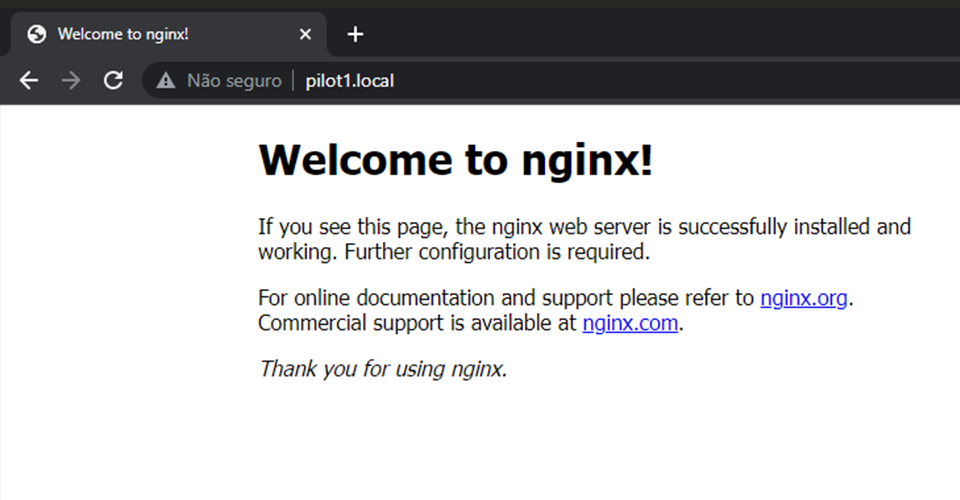
What is Nginx ? Nginx (pronounced “engine-x”) is a popular open-source web server and reverse proxy server software. It’s known for its high performance, scalability, and reliability, making it a widely used choice for serving web content and managing network traffic on the internet. Nginx is available for various operating systems and is highly customizable through its configuration files. It’s widely used by web developers and system administrators to optimize web server performance, improve web application security, and manage network traffic efficiently. What is OpenSSL ? OpenSSL is an open-source software library that provides cryptographic functions and protocols for secure communication over computer networks. It is widely used for implementing secure communication in various applications and systems, including web servers, email servers, virtual private networks (VPNs), and more. OpenSSL plays a crucial role in securing internet communications, including the encryption of web traffic, email communication, and the establishment of secure VPN connections. However, it has faced security vulnerabilities and issues in the past, leading to efforts to improve its security and maintainability. Users are encouraged to keep their OpenSSL installations up to date to address security concerns and vulnerabilities. Install Nginx + PHP + SSL Nginx is the webserver used to display the pages. We’ll need to install an SSL certificate because in order to use Websockets and WebRTC, a secure connection to the browser is necessary. The the certificate isn’t fully valid on localhost, but it won’t matter for our purposes. $ sudo apt-get install -y nginx php-fpm libnss3-tools openssl Generate a SSL certificate for Nginx $ sudo openssl req -x509 -nodes -days 365 -newkey rsa:2048 -keyout /etc/ssl/private/nginx-selfsigned.key -out /etc/ssl/certs/nginx-selfsigned.crt When it’s done, you’ll be asked a to fill a few fields.The really important one is the IP address 127.0.0.1 on line 6. The others can be anything. Country Name (2 letter code) [AU]: US State or Province Name (full name) [Some-State]: YOUR_STATE Locality Name (eg, city) []: YOUR_CITY Organization Name (eg, company) [Internet Widgits Pty Ltd]: SOME_NAME Organizational Unit Name (eg, section) []: SOME_NAME Common Name (e.g. server FQDN or YOUR name) []: 127.0.0.1 Email Address []: YOUR_EMAIL $ sudo openssl dhparam -out /etc/ssl/certs/dhparam.pem 2048 Create a new file: $ sudo nano /etc/nginx/snippets/self-signed.conf Paste the code below [Right Click] and save the file with: [Ctrl+X], then ‘Y’ + [Enter] to save. ssl_certificate /etc/ssl/certs/nginx-selfsigned.crt; ssl_certificate_key /etc/ssl/private/nginx-selfsigned.key; Create a new file: $ sudo nano /etc/nginx/snippets/ssl-params.conf Paste the code below [Right Click] and save the file with: [Ctrl+X], then ‘Y’ + [Enter] to save. # from https://cipherli.st/ # and https://raymii.org/s/tutorials/Strong_SSL_Security_On_nginx.html ssl_protocols TLSv1 TLSv1.1 TLSv1.2; ssl_prefer_server_ciphers on; ssl_ciphers “EECDH+AESGCM:EDH+AESGCM:AES256+EECDH:AES256+EDH”; ssl_ecdh_curve secp384r1; ssl_session_cache shared:SSL:10m; ssl_session_tickets off; ssl_stapling on; ssl_stapling_verify on; resolver 8.8.8.8 8.8.4.4 valid=300s; resolver_timeout 5s; # Disable preloading HSTS for now. You can use the commented out header line that includes # the “preload” directive if you understand the implications. #add_header Strict-Transport-Security “max-age=63072000; includeSubdomains; preload”; add_header Strict-Transport-Security “max-age=63072000; includeSubdomains”; add_header X-Frame-Options DENY; add_header X-Content-Type-Options nosniff; ssl_dhparam /etc/ssl/certs/dhparam.pem; Check your PHP version and your php-fpm.sock version to change your nginx.conf file after:See my results: $ php –version PHP 8.3.6 $ ls /run/php/ php8.3-fpm.pid php8.3-fpm.sock php-fpm.sock Take note of your results and change these lines of your nginx file: $ sudo nano /etc/nginx/sites-enabled/default # change root folder to: root /home/USERNAME/www; # ADD index.php to the list of pages index.php # uncomment these lines location ~ .php$ { include snippets/fastcgi-php.conf; # # # With php-fpm (or other unix sockets): fastcgi_pass unix:/var/run/php/php8.3-fpm.sock; # # With php-cgi (or other tcp sockets): # fastcgi_pass 127.0.0.1:9000; } # deny access to .htaccess files, if Apache’s document root # concurs with nginx’s one # location ~ /.ht { deny all; } Complete files: sites-enabled/default sites-enabled/default (Modified) ## # You should look at the following URL’s in order to grasp a solid understanding # of Nginx configuration files in order to fully unleash the power of Nginx. # https://www.nginx.com/resources/wiki/start/ # https://www.nginx.com/resources/wiki/start/topics/tutorials/config_pitfalls/ # https://wiki.debian.org/Nginx/DirectoryStructure # # In most cases, administrators will remove this file from sites-enabled/ and # leave it as reference inside of sites-available where it will continue to be # updated by the nginx packaging team. # # This file will automatically load configuration files provided by other # applications, such as Drupal or WordPress. These applications will be made # available underneath a path with that package name, such as /drupal8. # # Please see /usr/share/doc/nginx-doc/examples/ for more detailed examples. ## # Default server configuration # server { listen 80 default_server; listen [::]:80 default_server; # SSL configuration # # listen 443 ssl default_server; # listen [::]:443 ssl default_server; # # Note: You should disable gzip for SSL traffic. # See: https://bugs.debian.org/773332 # # Read up on ssl_ciphers to ensure a secure configuration. # See: https://bugs.debian.org/765782 # # Self signed certs generated by the ssl-cert package # Don’t use them in a production server! # # include snippets/snakeoil.conf; root /var/www/html; # Add index.php to the list if you are using PHP index index.html index.htm index.nginx-debian.html; server_name _; location / { # First attempt to serve request as file, then # as directory, then fall back to displaying a 404. try_files $uri $uri/ =404; } # pass PHP scripts to FastCGI server # #location ~ .php$ { # include snippets/fastcgi-php.conf; # # # With php-fpm (or other unix sockets): # fastcgi_pass unix:/run/php/php7.4-fpm.sock; # # With php-cgi (or other tcp sockets): # fastcgi_pass 127.0.0.1:9000; #} # deny access to .htaccess files, if Apache’s document root # concurs with nginx’s one # #location ~ /.ht { # deny all; #} } # Virtual Host configuration for example.com # # You can move that to a different file under sites-available/ and symlink that # to sites-enabled/ to enable it. # #server { # listen 80; # listen [::]:80; # # server_name example.com; # # root /var/www/example.com; # index index.html; # # location / { # try_files $uri $uri/ =404; # } #} ## # You should look at the following URL’s in order to grasp a solid understanding # of Nginx configuration files in order to fully unleash the power of Nginx. # https://www.nginx.com/resources/wiki/start/ # https://www.nginx.com/resources/wiki/start/topics/tutorials/config_pitfalls/
How to install Nginx server with PHP and SSL (Linux) Read Post »