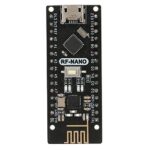
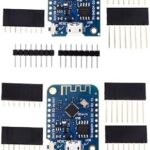
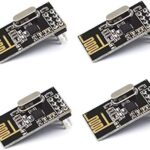
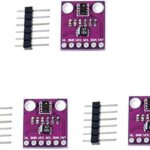
Buy the parts needed:
- Raspberry Pi Kit ……………..………………….… Amazon / Banggood
Disclosure: These are affiliate links. I earn a little comission if you use my links to buy the parts.
Please use them to help me continue building cool projects.
Step1: Download and install the necessary software
We’ll start on a fresh Raspberry pi image and install Samba, Nginx, PHP+SSL and Mosquitto
Step2: Install Raspberry Pi to your SD Card
It’s dumb to re-do work so: See how to do that on this very detailed guide.
Make sure to:
- Select your board (I used Raspberry Pi 3B+)
- Select the latest Raspberry Pi OS. (I used 64 bit Bookworm)
- Set hostname to “raceserver”
- Set username to “pi” and your password
- Add your Wi-Fi and locale information
- Enable SSH on the Services Tab
Step3: Connect via SSH
On the kitty SSH window use right-click to paste the commands.
raceserver.local
Step4: Install Samba
Samba is used only to easily transfer files over the network. We can disable or uninstall it after all is done.
$ sudo apt-get install -y samba winbind
Edit the samba configuration file
$ sudo nano /etc/samba/smb.conf
Add the line below after the “workgroup = WORKGROUP” line. If your workgroup is different change it too.
This adds support for windows networks.
Paste to kitty SSH window with [Right Click].
wins support = yes
Add this to the end of the configuration file to:
Share your “home/pi” folder and create a shared folder named [pi] on your network.
					[pi]
    comment=Home
    path=/home/pi
    browseable=Yes
    writeable=Yes
    only guest=no
    create mask=0777
    directory mask=0777
    public=no
Set a password to login over the network. It will be required on your first access so remember it.
$ sudo smbpasswd -a pi
Restart the samba daemon
$ sudo /etc/init.d/smbd restart
Now open Windows Explorer and type \\[HOSTNAME].local on the address bar to access your Pi:
\\raceserver.local
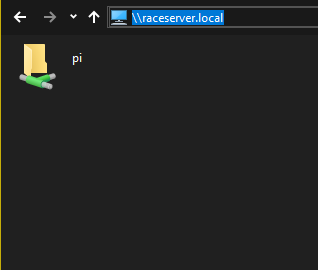
Enter the pi folder and now you can delete all folders inside your home folder. We’ll not need them.
Create a folder to store the racegame local website files.
Extract the RaceGame files you downloaded on this folder
$ mkdir ~/www
Step5: Install Nginx + PHP + SSL
Nginx is the webserver used to display the pages. We’ll need to install an SSL certificate because in order to use Websockets and WebRTC, a secure connection to the browser is necessary. The the certificate isn’t fully valid on localhost, but it won’t matter for our purposes.
$ sudo apt-get install -y nginx php-fpm libnss3-tools openssl
Generate a SSL certificate for Nginx
$ sudo openssl req -x509 -nodes -days 365 -newkey rsa:2048 -keyout /etc/ssl/private/nginx-selfsigned.key -out /etc/ssl/certs/nginx-selfsigned.crt
When it’s done, you’ll be asked a to fill a few fields.
The really important one is the IP address 127.0.0.1 on line 6. The others can be anything.
					Country Name (2 letter code) [AU]: US
State or Province Name (full name) [Some-State]: YOUR_STATE
Locality Name (eg, city) []: YOUR_CITY
Organization Name (eg, company) [Internet Widgits Pty Ltd]: SOME_NAME
Organizational Unit Name (eg, section) []: SOME_NAME
Common Name (e.g. server FQDN or YOUR name) []: 127.0.0.1
Email Address []: YOUR_EMAIL
$ sudo openssl dhparam -out /etc/ssl/certs/dhparam.pem 2048
Create a new file:
$ sudo nano /etc/nginx/snippets/self-signed.conf
Paste the code below [Right Click] and save the file with: [Ctrl+X], then ‘Y’ + [Enter] to save.
					ssl_certificate /etc/ssl/certs/nginx-selfsigned.crt;
ssl_certificate_key /etc/ssl/private/nginx-selfsigned.key;
Create a new file:
$ sudo nano /etc/nginx/snippets/ssl-params.conf
Paste the code below [Right Click] and save the file with: [Ctrl+X], then ‘Y’ + [Enter] to save.
					# from https://cipherli.st/
# and https://raymii.org/s/tutorials/Strong_SSL_Security_On_nginx.html

ssl_protocols TLSv1 TLSv1.1 TLSv1.2;
ssl_prefer_server_ciphers on;
ssl_ciphers "EECDH+AESGCM:EDH+AESGCM:AES256+EECDH:AES256+EDH";
ssl_ecdh_curve secp384r1;
ssl_session_cache shared:SSL:10m;
ssl_session_tickets off;
ssl_stapling on;
ssl_stapling_verify on;
resolver 8.8.8.8 8.8.4.4 valid=300s;
resolver_timeout 5s;
# Disable preloading HSTS for now.  You can use the commented out header line that includes
# the "preload" directive if you understand the implications.
#add_header Strict-Transport-Security "max-age=63072000; includeSubdomains; preload";
add_header Strict-Transport-Security "max-age=63072000; includeSubdomains";
add_header X-Frame-Options DENY;
add_header X-Content-Type-Options nosniff;

ssl_dhparam /etc/ssl/certs/dhparam.pem;
Check your PHP version and your php-fpm.sock version to change your nginx.conf file after:
See my results:
$ php --version
PHP 8.3.6
$ ls /run/php/
php8.3-fpm.pid php8.3-fpm.sock php-fpm.sock
Take note of your results and change these lines of your nginx file:
$ sudo nano /etc/nginx/sites-enabled/default
					# change root folder to:
root /home/pi/www;

# ADD index.php to the list of pages
index.php

# uncomment these lines
location ~ \.php$ {
                include snippets/fastcgi-php.conf;
        #
        #       # With php-fpm (or other unix sockets):
                fastcgi_pass unix:/var/run/php/php8.3-fpm.sock;
        #       # With php-cgi (or other tcp sockets):
        #       fastcgi_pass 127.0.0.1:9000;
        }

        # deny access to .htaccess files, if Apache's document root
        # concurs with nginx's one
        #
        location ~ /\.ht {
                deny all;
        }
Test to see if your config file has errors:
$ sudo nginx -t
If you have permission problems starting nginx:
					sudo chown -R :www-data /home/pi/www
sudo chmod -R 755 /home/pi
If i’ts all good, restart nginx:
$ sudo service nginx reload
Now you can open a browser and test the server by typing on the address bar:
http://localhost/
You should see the Race Game Server page if you copied the files to the folder on the steps before.
Step6: Install Mosquitto MQTT server and client
$ sudo apt-get install -y mosquitto mosquitto-clients
Edit the config file
sudo nano /etc/mosquitto/mosquitto.conf
					# mqtt
listener 1883
protocol mqtt

# websockets
listener 9001
protocol websockets
socket_domain ipv4
allow_anonymous true
sudo service mosquitto restart
ps -ef | grep mosq
Run these commands on the terminal:
					sudo apt-get install -y ufw
sudo ufw allow 80
sudo ufw allow 443
sudo ufw allow 1883
sudo ufw allow 9001
Step7: Testing Mosquitto MQTT Connections
Via terminal you can connect on port 1883 (mqtt://)
You can test if MQTT works by opening 2 terminal windows:
					# Open a SSH session on one terminal and subscribe to a topic
mosquitto_sub -h localhost -v -t race/events
					# Open another SSH session and send messages to a topic you're subscribed to
mosquitto_pub -d -h localhost -p 1883 -t "race/events" -m "Hello"
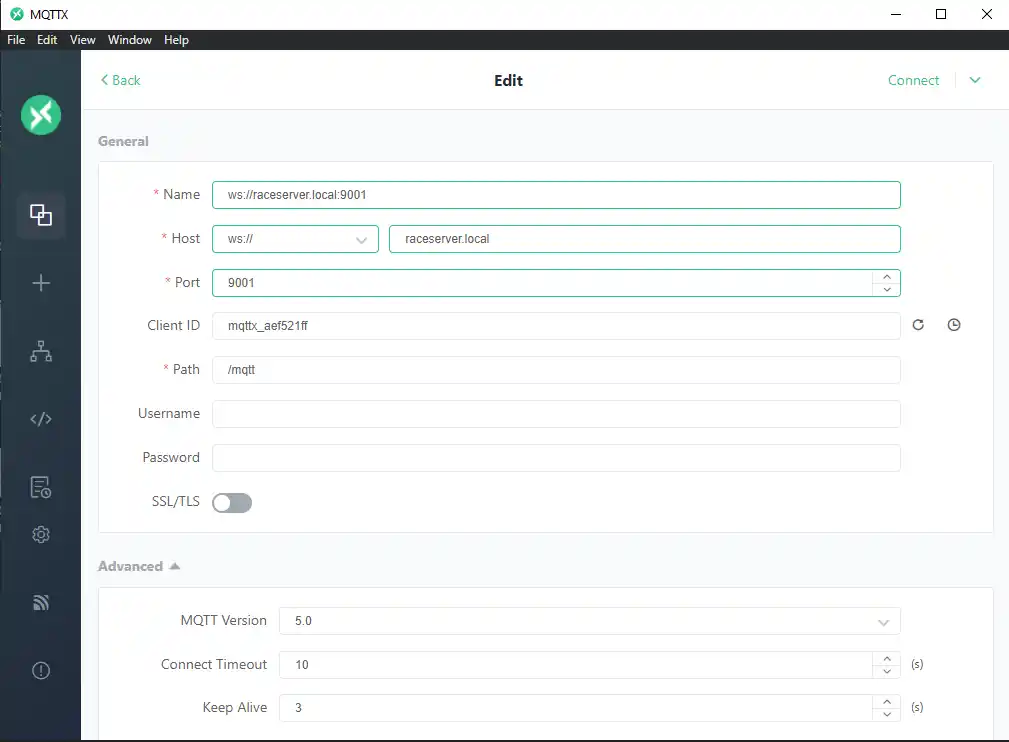
JavaScript connects via Websockets on port 9001 (ws://)
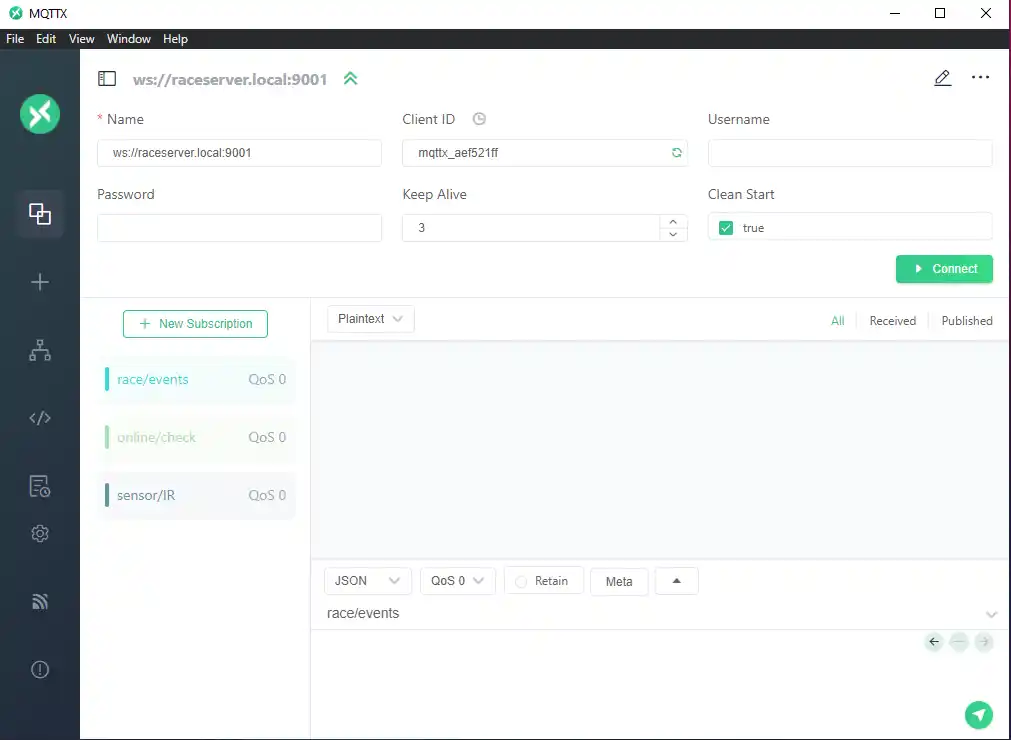
To test this, you can download this basic example or use an application like MQTTX
Step8: Testing Webpage Connections
…
Conclusion
…
What's Next ?
…